


Wie weise ich einer Produktgruppe einen anderen Mehrwertsteuersatz zu, zum Beispiel 7 % für Lebensmittel und 19 % für Küchengeräte? Müssen Sie dafür jedes Produkt einzeln öffnen? Nein. Wenn eine Gruppe von Produkten denselben Steuersatz, denselben Preis, dieselbe Lieferzeit oder denselben Rabatt bekommen soll, legen Sie diese Werte in einer Produktvorlage fest und kopieren sie in einem Durchgang auf alle diese Produkte.
Eine Produktvorlage ist ein Musterprodukt mit den Werten, die Sie verteilen wollen. Es wird nie verkauft: es liegt auf der Seite Produktvorlagen und dient nur als Quelle zum Kopieren. Vorlage anpassen, Werte kopieren, und alle ausgewählten Produkte sind aktualisiert.
1. Produktvorlage anlegen
Suchen Sie im Baummenü die Seite Produktvorlagen. Kopieren Sie ein Produkt dorthin oder legen Sie dort ein neues an und setzen Sie die Werte, die Sie weitergeben wollen. Das Bearbeiten einer Vorlage ändert sonst nichts, solange Sie die Werte nicht kopieren.
2. Zielprodukte auswählen
Öffnen Sie im Baummenü die Inhaltsliste oder schalten Sie eine Seite in die Listenansicht. Wählen Sie die Produkte aus, die Sie ändern wollen: mit gedrückter linker Maustaste darüberziehen oder mit SHIFT beziehungsweise STRG anklicken. Sollen alle Produkte einer Seite geändert werden, klicken Sie stattdessen mit der rechten Maustaste auf die Seite im Baummenü.
3. Werte kopieren
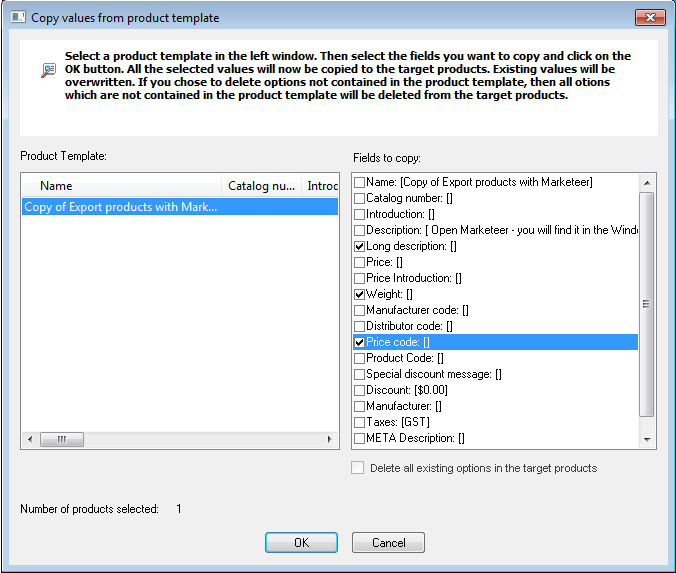
Klicken Sie mit der rechten Maustaste auf die Auswahl und wählen Sie "Daten von Produktvorlage kopieren". Der Assistent öffnet sich: links die Vorlage wählen, rechts die Felder anhaken und auf OK klicken. Danach Shop speichern und veröffentlichen.
Welche Felder lassen sich kopieren?
Der Assistent zeigt unter "Zu kopierende Felder" alle Felder, die er kopieren kann, und Sie haken die gewünschten an. In ShopFactory 15 ist das diese Liste:
- Name
- Preis Einführung
- Preis
- Gewicht
- Bild
- Katalognummer
- Einleitung
- Beschreibung
- Sichtbar
- Kaufen nicht ermöglichen
- Lieferbar in
- Lange Beschreibung
- Basispreis
- Highlights
- Verwandte Produkte
- Klassifizierung
- Maßeinheit
- Dezimale Mengenangaben wie 1.5 erlauben
- Hersteller-Code
- Distributor-Code
- Preiscode
- Produktcode
- Rabattcode (Kunden)
- Spezielle Rabatt-Nachricht
- Rabatt
- Hersteller
- EAN / UPC / UCC-13
- Steuern
- META Beschreibung
- META Stichworte
- Spezifikationen
- Stil für Detailansicht
- Versandgebühren
- Produkt-Taxonomie von Google
- Ein Angebot anfordern
- Ein Muster anfordern
- Optionen
Die angehakten Werte überschreiben das, was in den Zielprodukten steht. Nicht angehakte Felder bleiben unverändert, das Kopieren eines Steuersatzes rührt also weder Preise noch Beschreibungen an. Beim Kopieren von Optionen entfernt "Alle Optionen in Zielprodukten löschen" jede Option, die die Vorlage nicht enthält. Der Assistent zeigt unter "Anzahl der gewählten Produkte", wie viele Produkte ausgewählt sind: prüfen Sie diese Zahl, bevor Sie auf OK klicken, denn rückgängig machen lässt es sich nicht.
Beispiel: allen Produkten einer Seite denselben Mehrwertsteuersatz geben
Ein Shop verkauft Lebensmittel mit 7 % und Küchengeräte mit 19 % Mehrwertsteuer. Die Steuer ist in ShopFactory eine Einstellung am Produkt, gehört also nicht zu einer Seite oder Abteilung: Produktgruppen, denen Sie einen Steuersatz zuweisen könnten, gibt es in ShopFactory nicht. Trotzdem müssen Sie die Produkte nicht einzeln öffnen.
- Legen Sie zuerst beide Steuersätze an: zentrales Dropdown-Menü, dann Steuern.
- Legen Sie auf der Seite Produktvorlagen ein Produkt ab oder fügen Sie dort eines hinzu und stellen Sie dessen Steuer auf den Satz ein, den Sie verteilen wollen.
- Wählen Sie in der Inhaltsliste die Produkte aus, die diesen Satz bekommen.
- Klicken Sie mit der rechten Maustaste auf die Auswahl und wählen Sie "Daten von Produktvorlage kopieren".
- Wählen Sie die Vorlage, haken Sie nur Steuern an und klicken Sie auf OK.
- Wiederholen Sie das mit einer zweiten Vorlage für den anderen Satz.
- Speichern und veröffentlichen Sie den Shop.
Zwei nützliche Abkürzungen
Nur Preise: Produkte in der Inhaltsliste auswählen, rechts klicken und "Preise aller ausgewählten Produkte ändern" wählen. Dafür braucht es keine Vorlage.
Neue Produkte: Mit der Schaltfläche Vorlage verwenden in der Symbolleiste entsteht jedes neue Produkt gleich mit den Werten der Vorlage.
 Italiano
 Nederlands
 Français
 Deutsch
 Español
 English (UK)